





Streamlining Your Figma Workflow with Automation Tools
If you look at the calendar of a modern product designer, you might notice a startling reality: we often spend more time managing files than actually designing interfaces. Between renaming layers, fixing broken components, and prepping files for handoff, the "creative" part of the job often gets squeezed into small windows of time between administrative tasks.
As design operations scale, this manual labor becomes unsustainable. Automation is no longer just a nice-to-have; it is the key to maintaining velocity without burning out. Fortunately, the Figma ecosystem has evolved. By leveraging the right plugins, you can bridge the gap between creativity and efficiency, turning tedious chores into one-click actions.
Here is how you can reclaim your time and streamline your workflow using specific automation tools.
________________
1. Bringing Order to Chaos: AI-Powered Renaming
The Pain Point
We have all been there. You are deep in the flow state, iterating rapidly. Suddenly, you look at your layer panel and see a graveyard of "Frame 422," "Vector 12," and "Group 86." While this doesn't bother you in the moment, it creates a nightmare during handoff. Developers struggle to map elements to code, and other designers waste time deciphering your structure.
The Solution
Manual renaming is a waste of human intelligence. The solution lies in automating naming conventions using AI that understands not just the object type, but the context of what you designed.
Tool Spotlight: RenameVariantsAI
RenameVariantsAI takes the guesswork out of file hygiene.
- Features: It utilizes AI-driven context awareness to analyze what a layer visually represents and renames it accordingly. It also enforces strict adherence to your specific naming conventions (CamelCase, snake_case, etc.).
- Benefit: This results in significantly improved file navigation and a much smoother developer handoff experience, all without you typing a single character.
________________
2. Maintaining Design System Integrity
The Pain Point
"Design Debt" is the silent killer of consistent products. In the rush to meet deadlines, designers often detach instances or create "rogue styles" that deviate slightly from the established design system. Over time, these inconsistencies compound, making the file impossible to maintain and confusing the source of truth.
The Solution
You need a mechanism that acts like a spell-checker for your design system—an automated auditing workflow that catches inconsistencies before they ship to production.
Tool Spotlight: ComponentQA
ComponentQA is your automated quality assurance lead.
- Features: This tool instantly scans your selection or page to find detached instances and checks elements against your design system rules.
- Benefit: It ensures your design file remains the single source of truth, allowing you to catch and fix drift instantly rather than waiting for a QA engineer to flag it weeks later.
________________
3. Automating Component States and Documentation
The Pain Point
Building a robust component library is essential, but the process is incredibly tedious. Manually creating every variant state (hover, pressed, disabled, focused) and then writing out the red-line specifications for developers feels like assembly-line work, not design.
The Solution
Why push pixels manually when logic can do it for you? The modern workflow involves generating standard states and specifications programmatically.
Tool Spotlight: StateBuilder
StateBuilder accelerates library creation dramatically.
- Features: It auto-generates common component states based on your primary design and simultaneously creates visual specifications for documentation.
- Benefit: This saves hours of manual pixel-pushing when building component libraries, ensuring your documentation is always up to date with the actual visual design.
________________
4. Taming the Auto Layout Table Nightmare
The Pain Point
Figma’s Auto Layout is powerful, but complex data tables remain its kryptonite. Managing a table where changing one cell width breaks the alignment of the entire column—or trying to inject real data without ruining the layout—is a specific type of frustration every product designer knows well.
The Solution
General design tools aren't enough for complex data; you need specialized automation tools designed specifically for table alignment and data management.
Tool Spotlight: FixTable
FixTable turns one of the hardest UI tasks into one of the easiest.
- Features: It fixes broken Auto Layout tables and aligns data content instantly, ensuring rows and columns behave responsively.
- Benefit: It makes designing data-heavy dashboards significantly faster, allowing you to focus on how the data is visualized rather than fighting with the grid.
________________
5. Prepping for Handoff: The Final Cleanup
The Pain Point
You are ready to send the file to development. However, the canvas is cluttered with "noodle soup"—those blue prototype lines connecting screens—along with unused testing artifacts, sticky notes, and half-baked concepts. Sending a messy file increases cognitive load for stakeholders and developers, leading to questions and errors.
The Solution
You need a "one-click" janitor for your files—a capability to strip away the metadata and working artifacts to present a clean, final delivery.
Tool Spotlight: BiblioClean
BiblioClean ensures your professionalism shines through the final deliverable.
- Features: It removes prototype links, blue lines, and visual clutter to prepare a pristine, developer-ready file.
- Benefit: This drastically reduces visual noise, making it easier for developers to parse the file and understand exactly what needs to be built.
________________
Conclusion
Automation isn't about replacing the designer; it is about removing the administrative burden that keeps the designer from designing. By offloading tasks like renaming, auditing, and cleaning to specialized plugins, you don't just work faster—you work smarter.
Take a moment to audit your current workflow. If you find yourself manually typing layer names or fighting with table alignment, it’s time to implement these tools. Reclaim your creative time and let the machines handle the rest.
Tools for this workflow
Recommended BiblioKit Plugins
Learn
Design Ops Fundamentals
We built this evergreen mental model so designers, developers, and marketers can align design systems, handoff, implementation, launch, and campaigns.
Read the guideNext & previous
Before
The Ultimate Figma Plugin Stack: 8 Tools to Save You Hours Every Week
Install 8 Figma plugins that cut renaming, cleanup, and docs time so your team saves hours every week.
Figma Plugins • 4 min read

Next
Effortless Table Design in Figma: A Comprehensive Guide
Build scannable Figma tables fast with Auto Layout patterns that keep rows aligned.
UI Design • 4 min read
Related articles
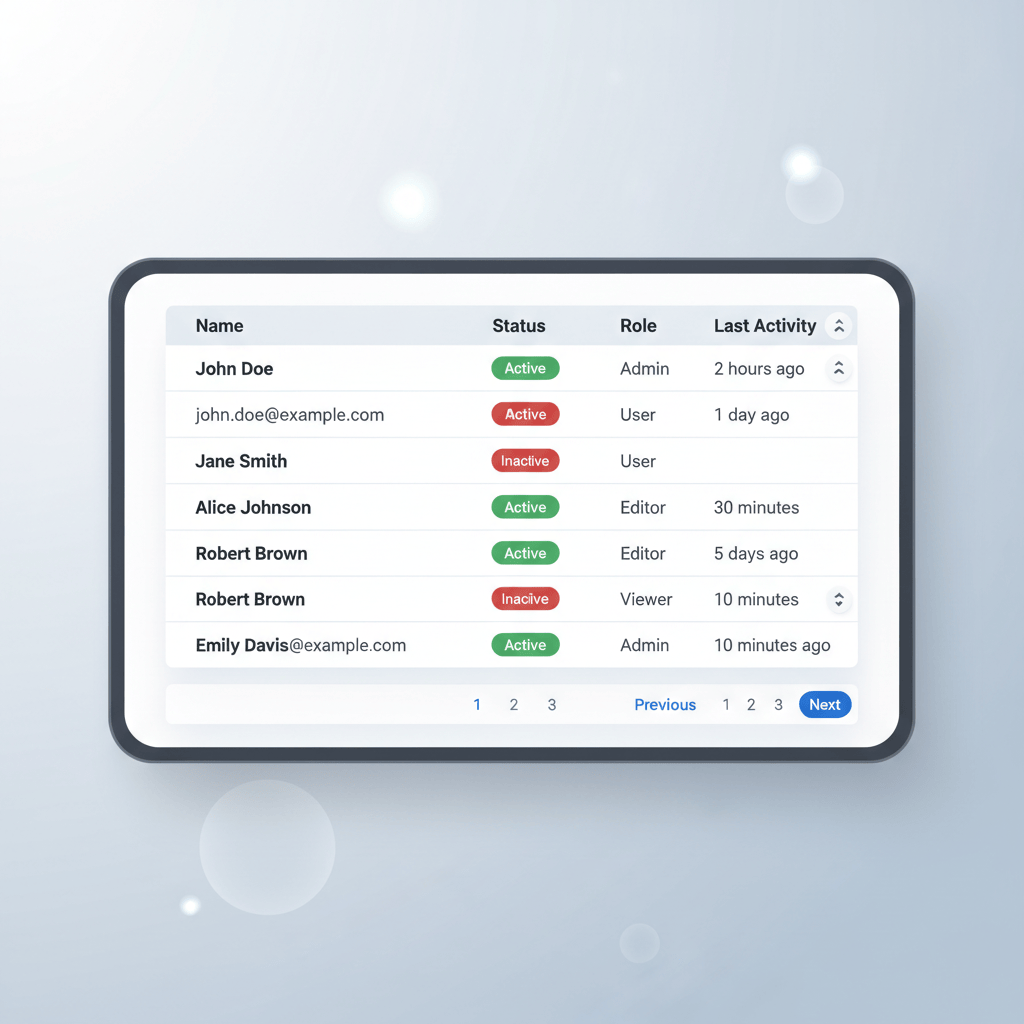
BiblioKit's Table Design Guide: Fix Auto-Layout & Align Data
Use Auto Layout to align Figma tables, reduce rework, and ship cleaner dashboards.
UI Design • 6 min read
Mastering UI Component States: Your Secret Weapon for Awesome UI
Master UI component states so interfaces feel reliable, accessible, and consistent.
UI Design • 8 min read
BiblioKit 2026: Master Figma Auto Layout Wrap for Responsive Designs
Master Figma Auto Layout Wrap so responsive components stay intact without layout bugs.
Figma Plugins • 4 min read