





The Ultimate Figma Plugin Stack: 8 Tools to Save You Hours Every Week
Time is the one resource designers can’t pixel-push into existence. In the fast-paced world of modern UI/UX design, efficiency isn't just a "nice-to-have"—it's a survival skill. While creativity fuels the design, the workflow is often bogged down by repetitive tasks, messy layers, and the eternal struggle of developer handoff.
If you feel like you're spending more time managing your file than actually designing, you might be missing the right utility belt. The right plugin stack can shave hours off your work week, turning tedious chores into one-click actions.
In this guide, we’re breaking down the essential plugins for documentation, content management, and bulk utility that every efficient designer needs installed.
Category 1: Design Systems & Documentation
Why it matters: Handoff and documentation are notoriously the biggest time-sinks for designers. Creating specs manually is necessary for developers, but it kills your creative momentum.
1. StateBuilder (Top Pick)
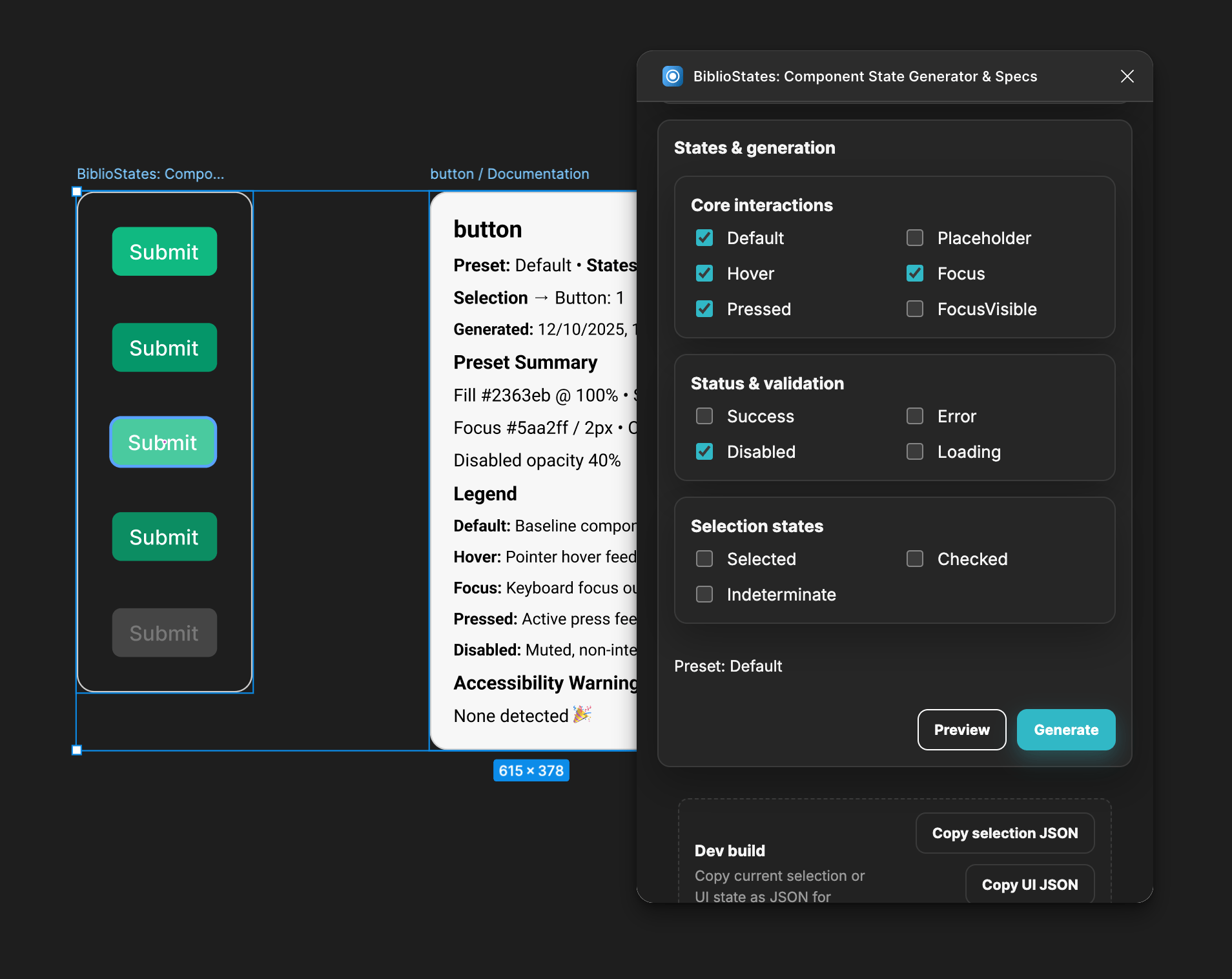
If you manage a design system, this is the plugin you didn't know you needed but won't be able to live without. StateBuilder is a powerhouse tool designed to generate component states and specifications automatically.
- Overview: It takes your master components and automatically generates a visual library of their states.
- Key Benefit: It deeply reduces the manual effort required to visualize different component variants (hover, active, disabled, error) for developers. Instead of manually dragging out every variant and arranging them in a grid, StateBuilder does the heavy lifting.
- Use Case: This is perfect for design system managers who need to create comprehensive specifications (specs) quickly. It ensures your developers see every possible state of a button or input field without you having to build a manual "sticker sheet."
2. EightShapes Specs
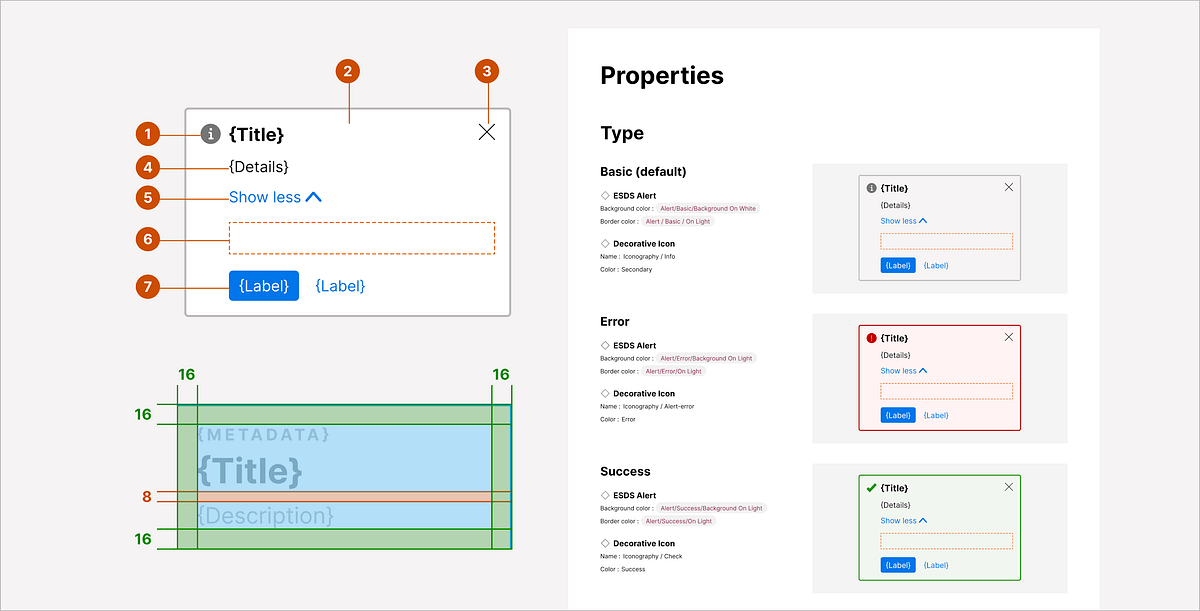
Once your states are generated, you need to explain the layout. EightShapes Specs automates the process of "redlining."
- Function: It generates specification frames around your components, detailing spacing, typography, and CSS properties.
- Impact: It reduces the back-and-forth questions from developers regarding padding and margins.
Category 2: Content & Asset Management
Why it matters: Stop using "Lorem Ipsum" manually. Designing with fake content leads to broken layouts later. Using real(ish) data early on helps you spot edge cases immediately.
3. Content Reel
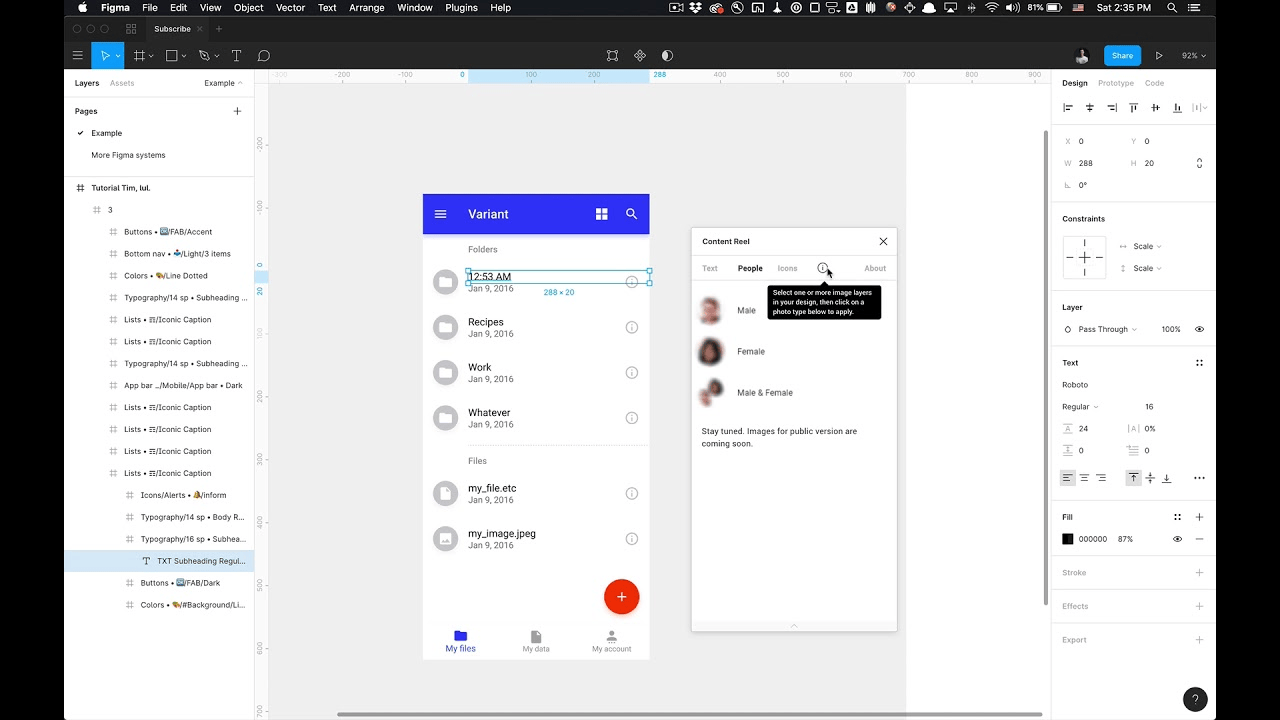
Created by Microsoft, Content Reel is the gold standard for populating designs.
- Feature: Drag and drop real text strings (names, addresses, phone numbers), avatars, and icons directly into your selected layers.
- Workflow: Instead of typing "John Doe" 50 times, you select 50 text layers and click one button to populate unique names.
4. Unsplash
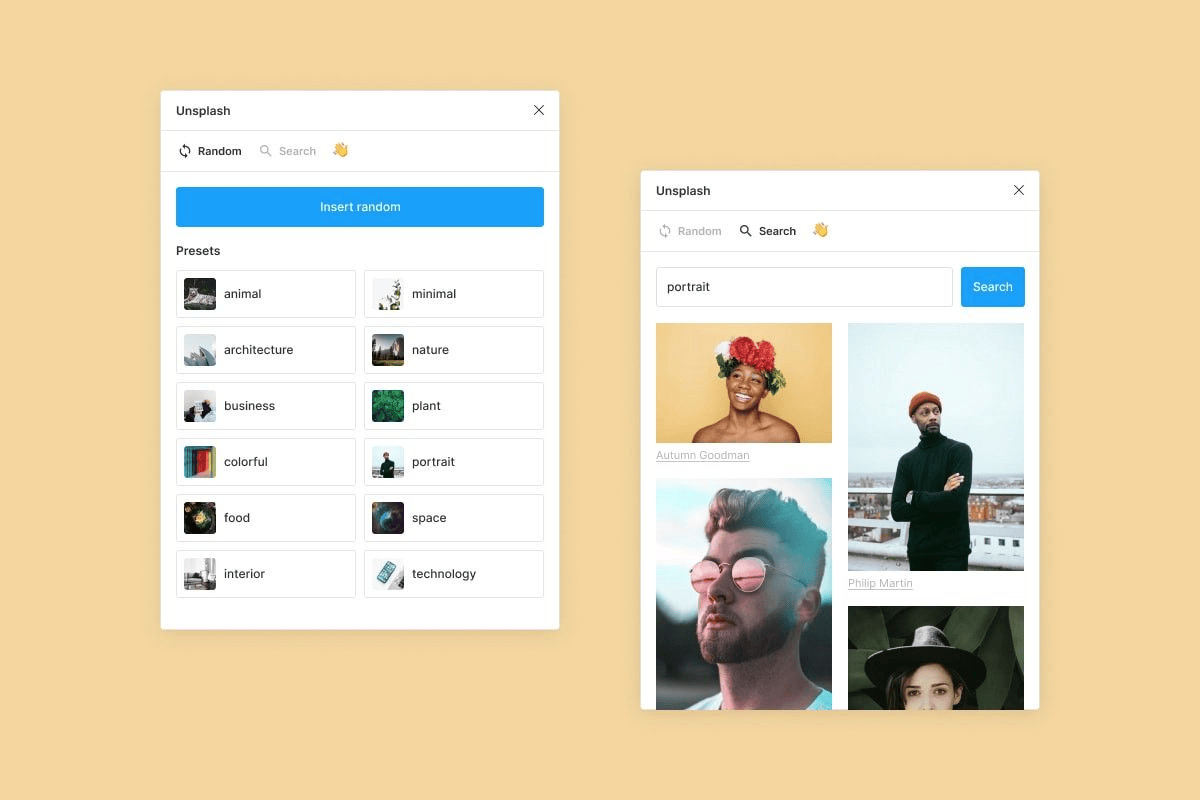
Visuals make or break a mockup. The Unsplash plugin brings the world’s largest open-source photography library directly into Figma.
- Feature: Instant high-quality stock photography insertion.
- Speed: Select a shape, search for a keyword (e.g., "Architecture"), and click an image to fill the shape instantly. No more downloading, cropping, and importing.
Category 3: Bulk Actions & Cleanup
Why it matters: Managing messy layers kills productivity. A clean file is a fast file, but manually renaming "Rectangle 432" or finding every instance of a specific hex code is a nightmare.
5. Similayer
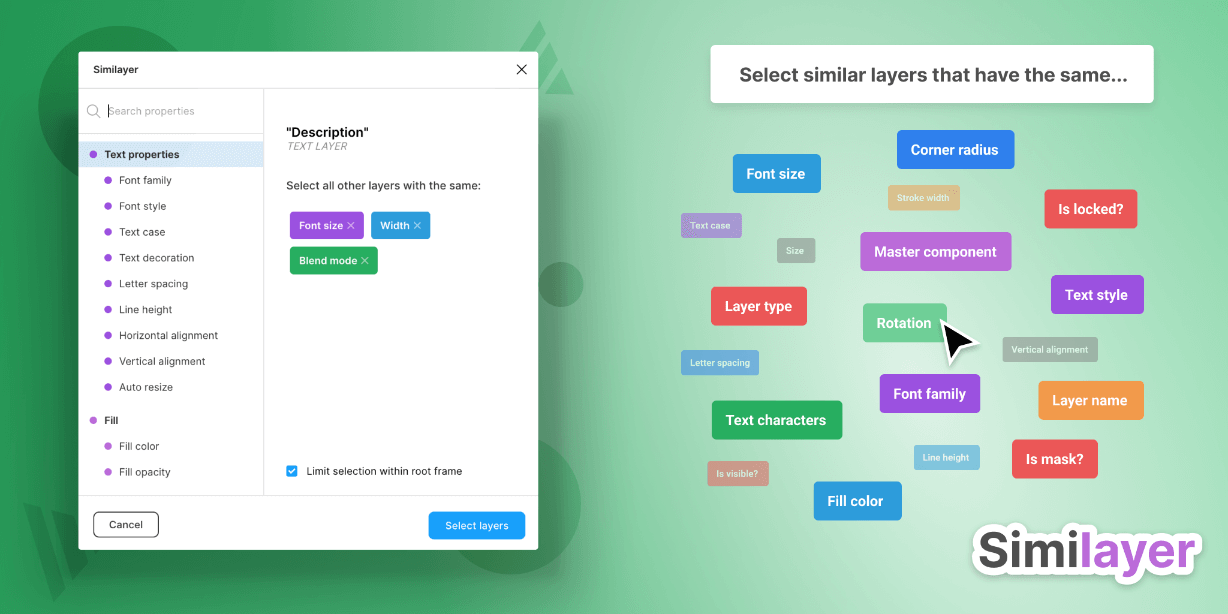
If Figma’s native "Select same..." feature is a bicycle, Similayer is a Ferrari.
- Function: It offers advanced selection capabilities based on a wide range of properties.
- Example: You can select all text layers that are bold, size 12, and red. This is invaluable when you need to update a specific style across a massive file that isn't using variables yet.
6. Rename It
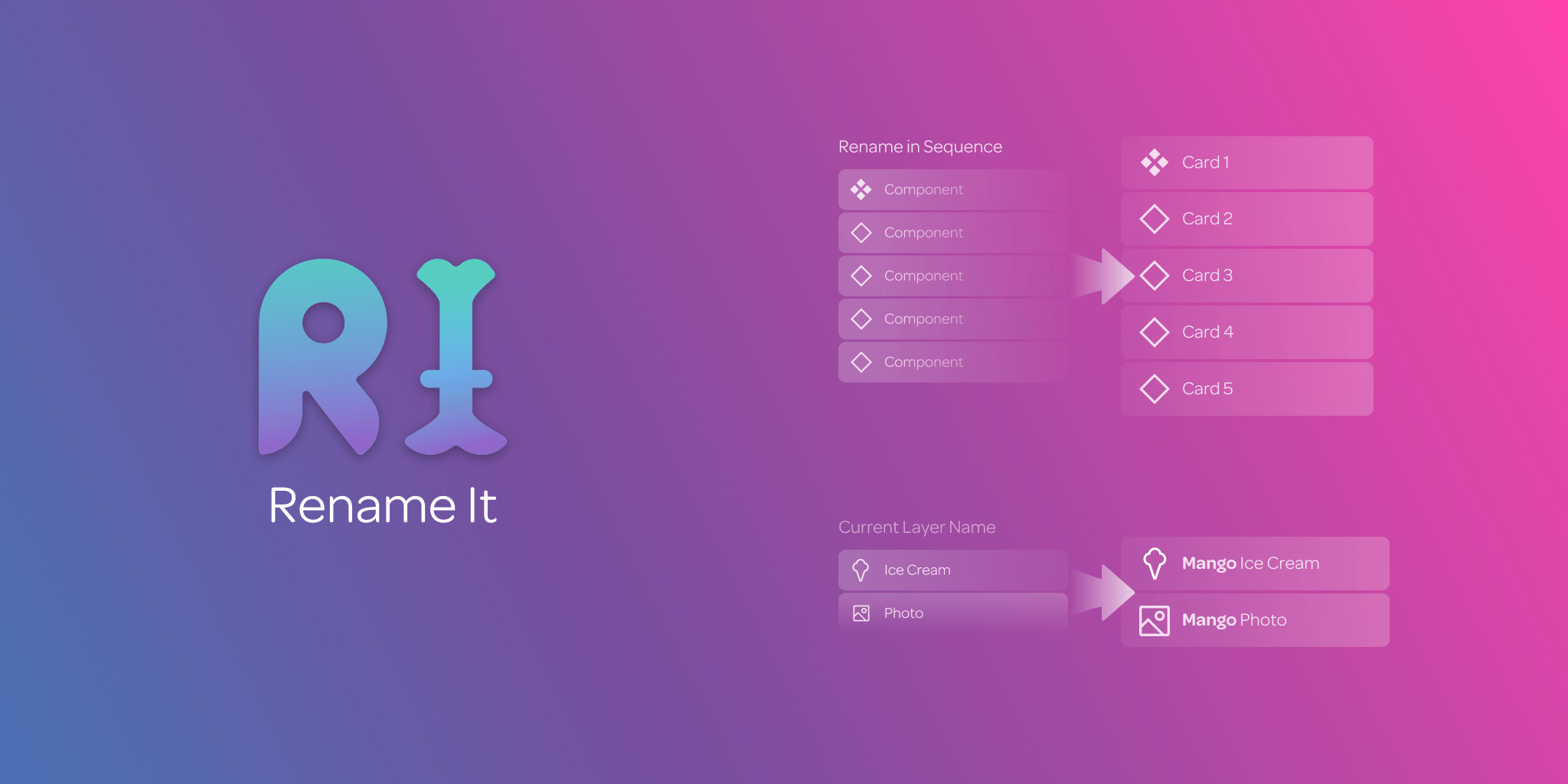
Developers hate seeing "Group 1," "Group 2," and "Vector 5." While Figma introduced its own native, AI-assisted layer renaming to handle basic cleanup, Rename It remains an essential tool for complex batch operations and advanced find-and-replace logic.
- Function: Batch rename layers using sequences, alphabets, or find-and-replace logic.
- Benefit: Keeps files organized and professional for handoff without the manual typing.
7. Clean Document
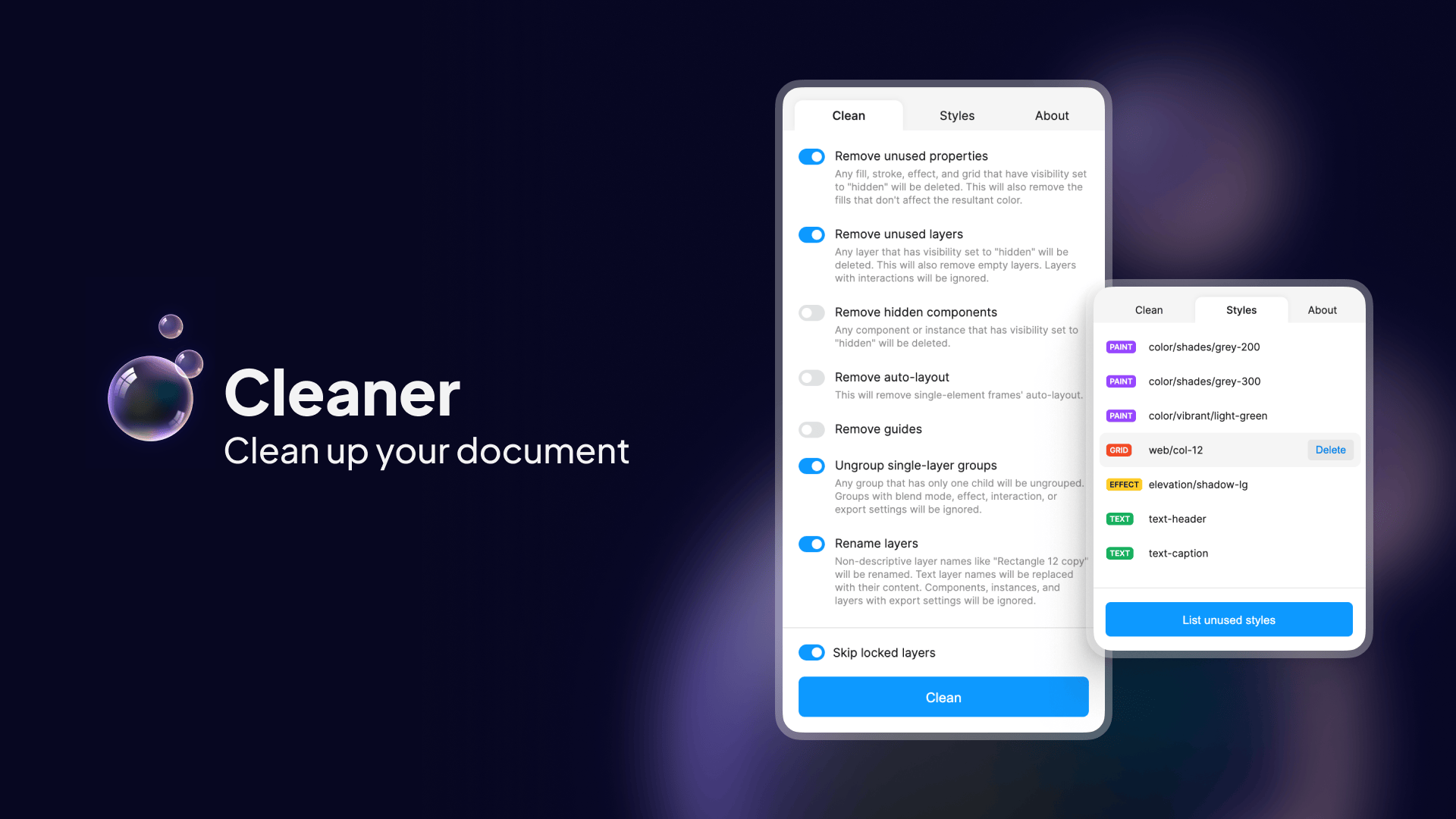
Think of Clean Document as the janitor for your Figma file.
- Function: With one click, it automatically deletes hidden layers, ungroups single-layer groups, and snaps layers to the nearest pixel.
- Impact: It reduces file size and removes the "ghost layers" that confuse developers inspecting the file.
Category 4: Accessibility & Validation
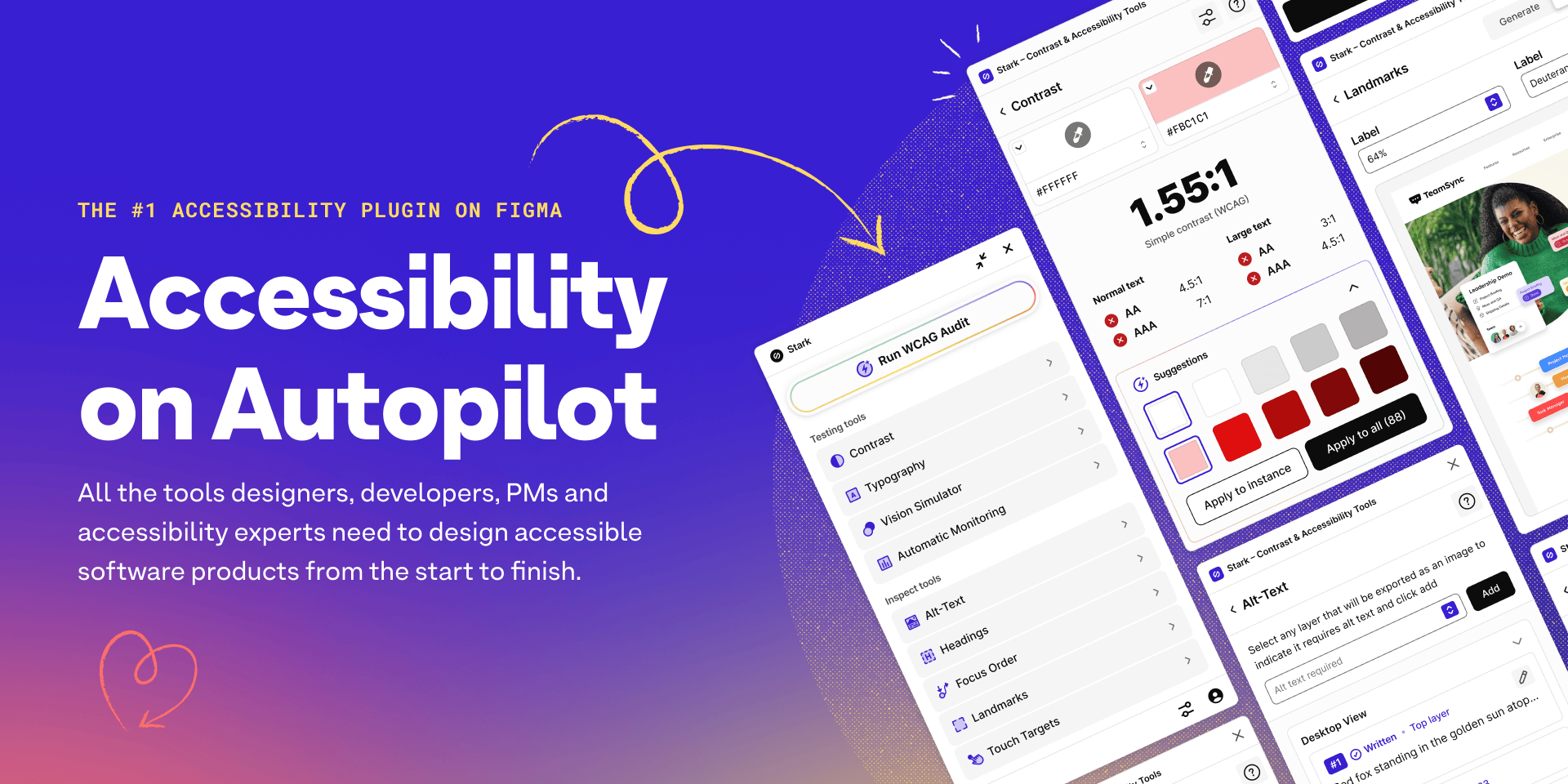
8. Stark
Accessibility should not be an afterthought; it should be part of the process.
- Function: Stark provides a suite of tools for checking contrast ratios, simulating color blindness, and validating focus orders.
- Real-time: You can check if your grey text on a white background is legible according to WCAG standards without leaving the canvas.
Conclusion
Productivity in Figma isn't about working faster; it's about removing the friction that slows you down. The compound effect of saving 5 minutes here on renaming layers and 10 minutes there on documentation adds up to hours of saved time every single week.
If you are looking for an immediate ROI on your time, start by automating your documentation. Handing off clear, state-based specs is usually the most time-consuming part of the job. Give StateBuilder a try to instantly streamline that process.
Final thought: Keep your plugin list curated. It’s easy to install hundreds of tools, but mastering a core set of 8-10 essential plugins will do more for your workflow than a cluttered list you never use. Happy designing!
Tools for this workflow
Recommended BiblioKit Plugins
BiblioRename
AI batch renaming for variants and layers
ComponentQA
Design system audits and drift detection
BiblioClean
Remove broken prototype links in one click
FixTable
Normalize Figma table structures instantly
StateBuilder
Generate component states and specs
BiblioStart
One-click file scaffolding and project setup
Learn
Design Ops Fundamentals
We built this evergreen mental model so designers, developers, and marketers can align design systems, handoff, implementation, launch, and campaigns.
Read the guideNext & previous
Before
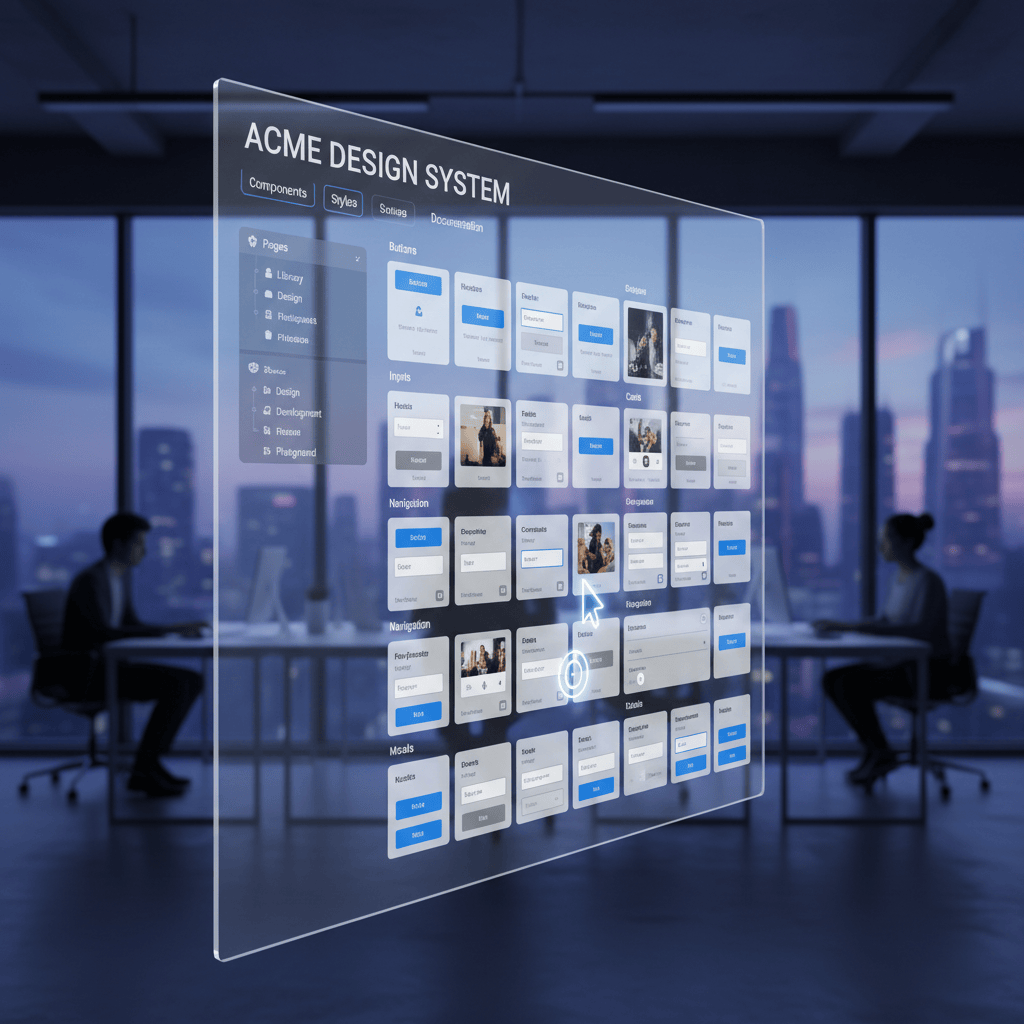
The 2026 Shift: Bridging the Gap Between Design and Dev
Close the 2026 design-dev gap with five component library shifts that align tokens with production code.
Design Systems • 5 min read
Next
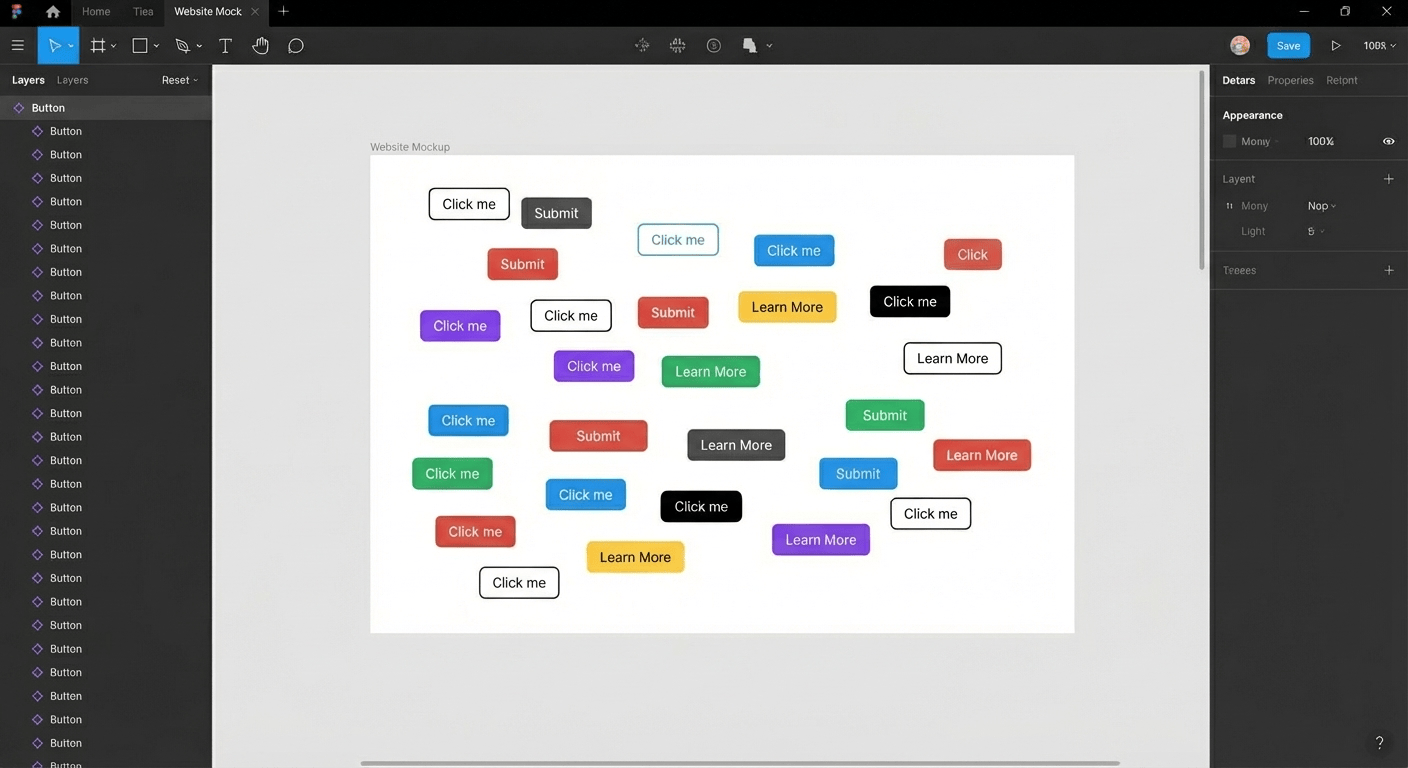
Streamlining Your Figma Workflow with Automation Tools
Automate Figma renaming, audits, states, tables, and cleanup so your team ships faster each sprint.
Figma Plugins • 5 min read
Related articles

Effortless Table Design in Figma: A Comprehensive Guide
Build scannable Figma tables fast with Auto Layout patterns that keep rows aligned.
UI Design • 4 min read
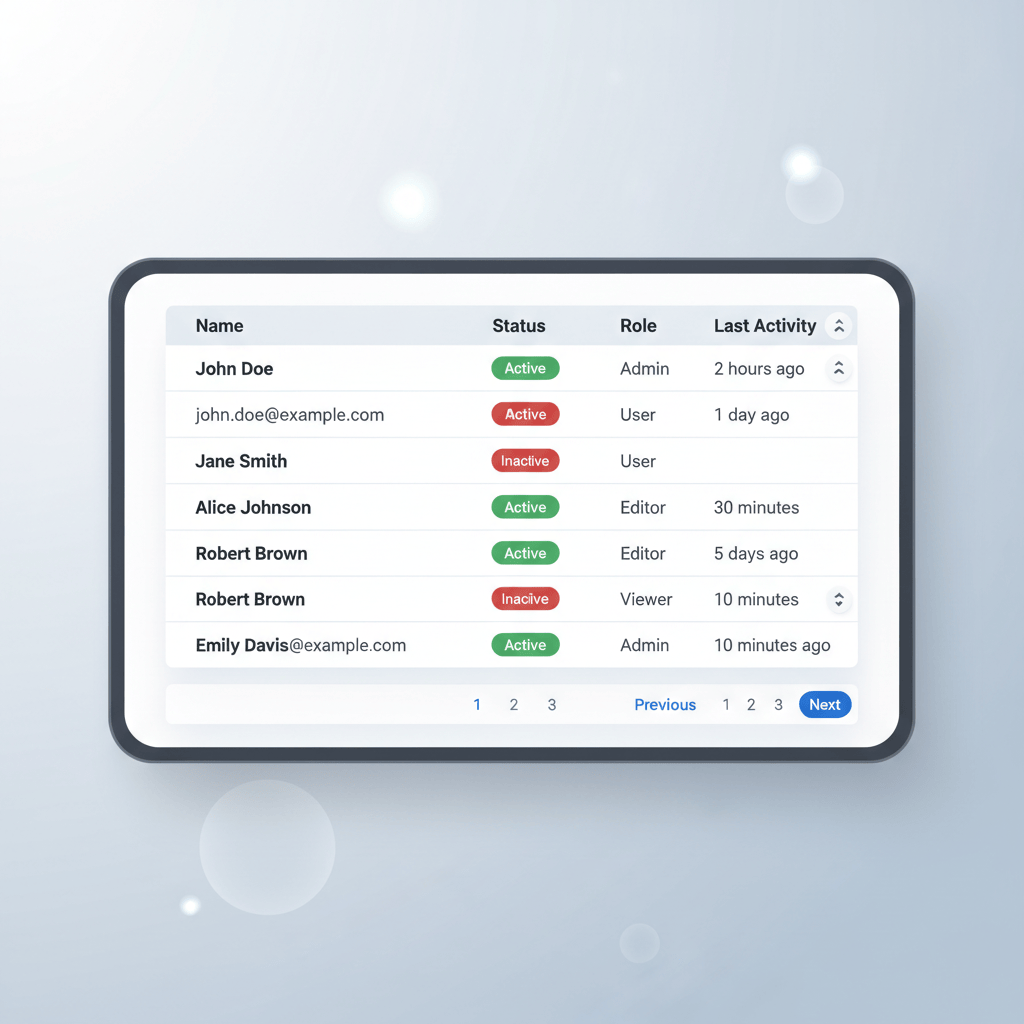
BiblioKit's Table Design Guide: Fix Auto-Layout & Align Data
Use Auto Layout to align Figma tables, reduce rework, and ship cleaner dashboards.
UI Design • 6 min read
Mastering UI Component States: Your Secret Weapon for Awesome UI
Master UI component states so interfaces feel reliable, accessible, and consistent.
UI Design • 8 min read