





How to Find and Fix Detached Instances in Figma (2026 Guide)
Ever felt like your Figma file is secretly plotting against you? You're cruising along, building designs, and then suddenly, things feel off. Components aren't updating, your file is sluggish, and there's a general sense of chaos.
Chances are, you've got a case of the "detached instances" on your hands. Don't worry, you're not alone. This is a common hiccup in the world of Figma, but it's one we absolutely need to fix.
When the connection breaks, the chaos begins.
Introduction: Understanding Detached Instances
Here's the thing: components are the backbone of any good design system. They promise consistency, efficiency, and a whole lot less manual work. But when those components decide to go rogue and detach, they break that promise.
Think of it like a remote control that's suddenly lost its connection to the TV. It looks the same, but it's useless for changing channels. That's a detached instance in a nutshell.
What are Figma Detached Instances?
In Figma, an instance is a copy of a master component. When you use an instance, it stays linked to its parent. Change the master component, and all its instances update automatically—pure magic!
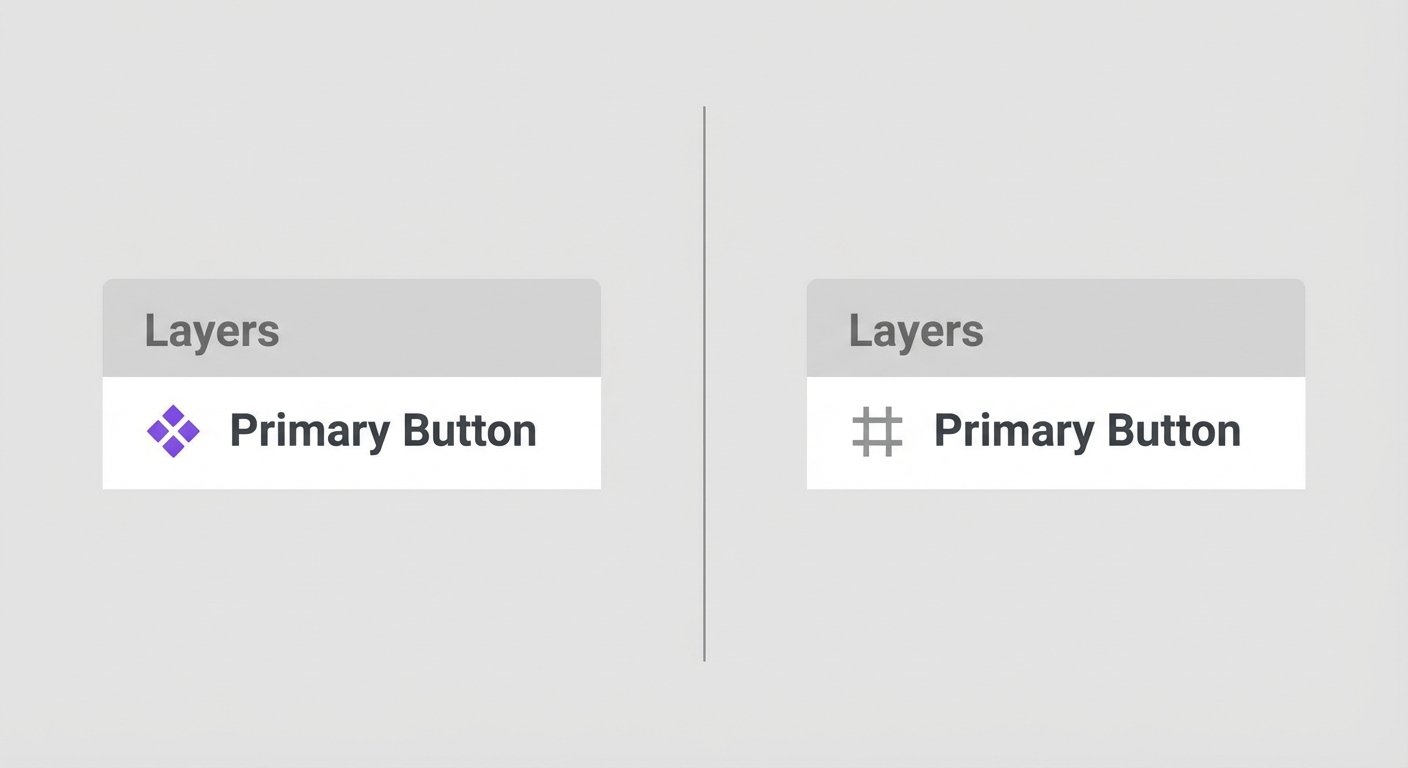
A detached instance, however, is an instance that has lost this vital connection. It's no longer linked to its original master component. It becomes a standalone group of layers, frozen in time at the moment it broke free.
Why are Detached Instances a Problem?
You might be thinking, "So what? It still looks like the button I wanted." Detached instances are actually silent assassins, slowly eroding your design system and making everyone's life harder.
- Broken Design Systems & Inconsistency: Update your master button and detached copies stay stuck, creating a messy mix of old and new components.
- Performance Issues & "Memory Leaks": Each detached instance is a unique group of layers Figma has to render and store. Hundreds of them bloat files, slow saves, and can even crash your file.
- Maintenance Nightmares & Scalability Challenges: Linked instances update in seconds. Detached ones force manual hunts, re-creations, and guesses—ruining scale and wasting time.
Stop Hunting for Errors Manually
Searching for detached instances layer-by-layer is a waste of billable hours. You can automate this entire process in 5 seconds.
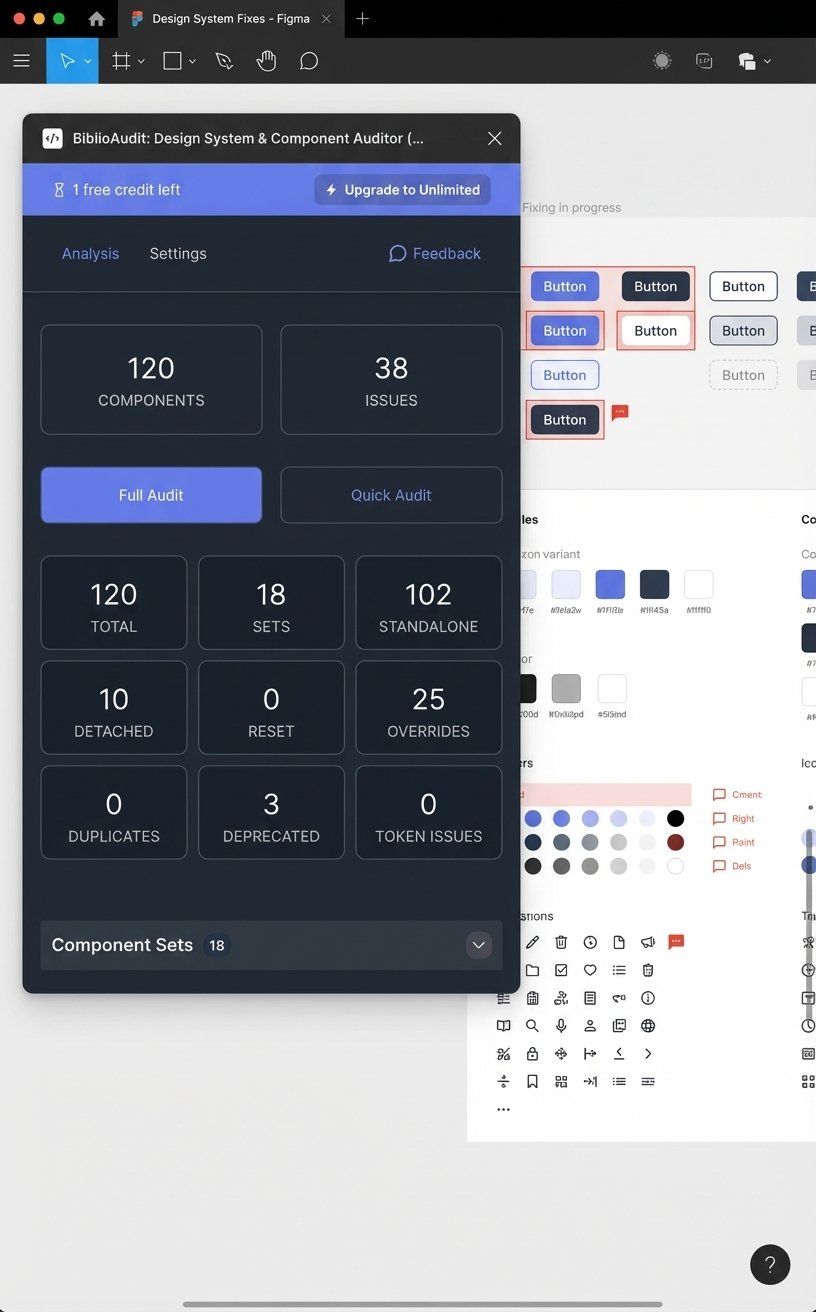
Figma File Audit with BiblioAudit is the automated Quality Assurance tool for Figma. It scans your file, identifies every detached instance, and flags missing styles instantly.
Install BiblioAudit for free on Figma. Find detached instances, reset overrides, and fix your design system in minutes.
Understanding Why Detached Instances Happen
So, why do these little rebels decide to go off-grid? It's usually not malicious, but a mix of accidents, oversights, and sometimes intentional choices that go wrong.
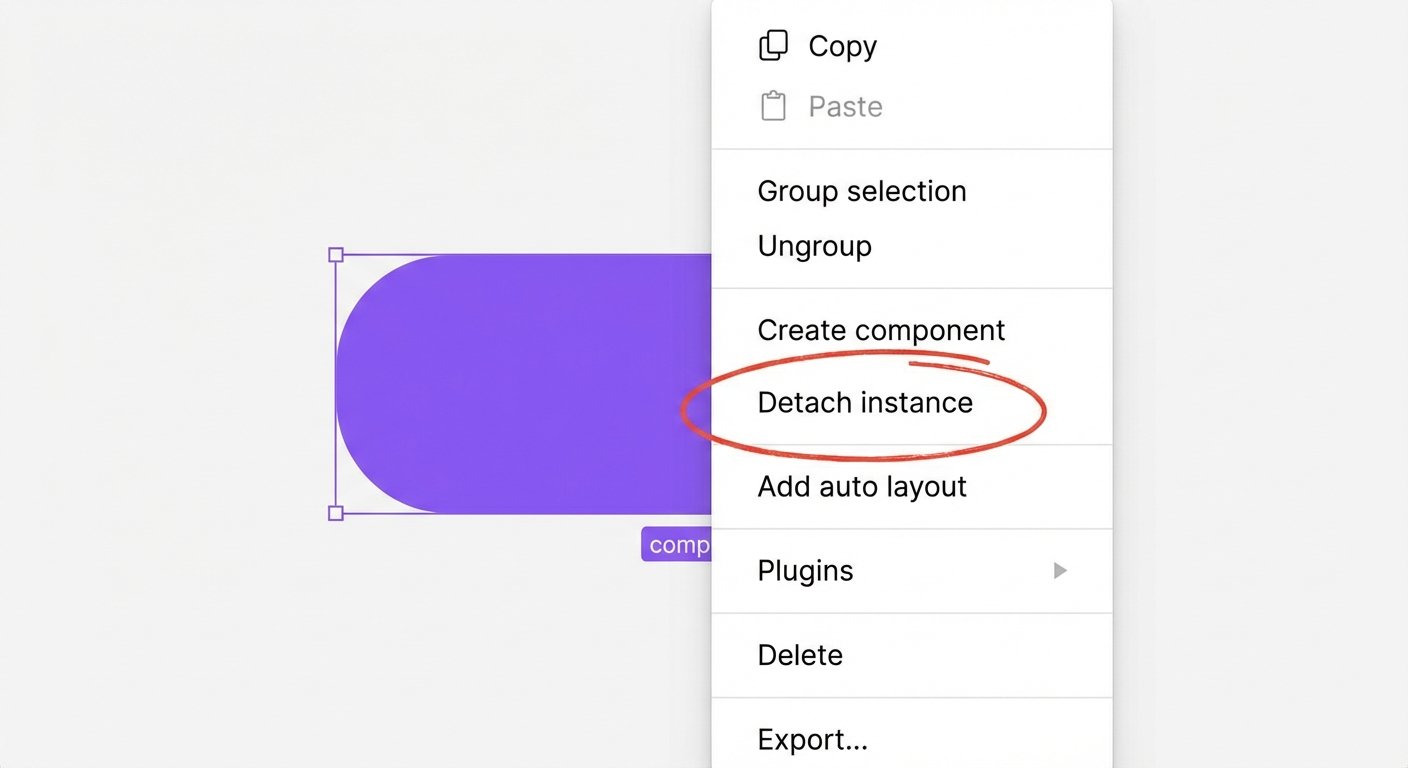
- Accidental Detachments: It can be a slip of the finger. Hitting Ctrl/Cmd + Alt/Option + B (the detach shortcut) is a common culprit.
- Copy-Pasting from Unlinked Files: If you paste a component from a file that isn't connected to your active library, Figma can't find the parent and brings it in as a detached frame.
- Library Deletion: If the source library gets unpublished or deleted, the instances are stranded without a home.
- Missing Plugins/Fonts: When a component relies on missing assets, Figma might struggle to render the link, leading to manual detaching as a quick fix.
- Lack of Guidelines: Without proper training, teams detach components because they don't know how to use Variants or Properties correctly.
How to Identify Detached Instances
- Manual Inspection: Check your Layers panel. If you see a component on the canvas but a Frame (#) or Group icon in the layer list, that's a red flag.
- The "Select All" Trick: Select a healthy instance, right-click, and choose "Select all with same instance." If identical-looking elements aren't selected, they're likely detached.
- Automated Detection: The pro move. Use plugins like BiblioAudit to scan your entire file in seconds and get a list of every detached instance, missing style, and deprecated component.
Strategies to Fix Detached Instances
- Reconnect: Select the element and use the "Change Instance" menu (diamond icon) in the right sidebar to swap it back to the correct library component.
- Replace: Delete the detached element and drag a fresh, linked instance from your Assets panel.
- New Master: If the detached element was changed on purpose because it's a unique design, turn it into a New Master Component to keep your system organized.
- Batch Fixing: For massive cleanups, use a dedicated tool like BiblioAudit. Instead of clicking through thousands of layers, you get a prioritized list of errors you can navigate to instantly.
Prevention: Best Practices
- Documentation: Create clear guidelines on when (and when NOT) to detach.
- Regular Audits: Schedule a "Hygiene Day" at the end of each day with BiblioAudit.
- Use Variants: Teach your team to use Component Variants for different states (Hover, Active, Error) instead of detaching to change colors manually.
- Version Control: Treat your design system like code. Publish changes deliberately.
Conclusion: Maintaining a Healthy Figma Workflow
Dealing with Figma detached instances can feel like a chore, but it's a necessary one.
Think of your Figma files as a garden: if you don't pull the weeds (the detached instances), they'll choke out the beautiful flowers (your well-built components) and make the whole garden look messy and unhealthy.
By understanding what they are and how to fix them, you're building a scalable, efficient workflow for your entire team. Keep those components linked, and your design life will be a whole lot smoother.
Learn
Design Ops Fundamentals
We built this evergreen mental model so designers, developers, and marketers can align design systems, handoff, implementation, launch, and campaigns.
Read the guideNext & previous
Before
BiblioKit 2026: Master Figma Auto Layout Wrap for Responsive Designs
Master Figma Auto Layout Wrap so responsive components stay intact without layout bugs.
Figma Plugins • 4 min read
Next
Remove Figma Prototype Links: A Guide by BiblioKit (2026)
Remove Figma prototype links safely so you share the right build without broken flows.
Figma Plugins • 6 min read
Related articles

Best Practices for Effective Design System Guidelines
Build design system guidelines that keep components consistent and shipping speeds up.
Design Systems • 9 min read
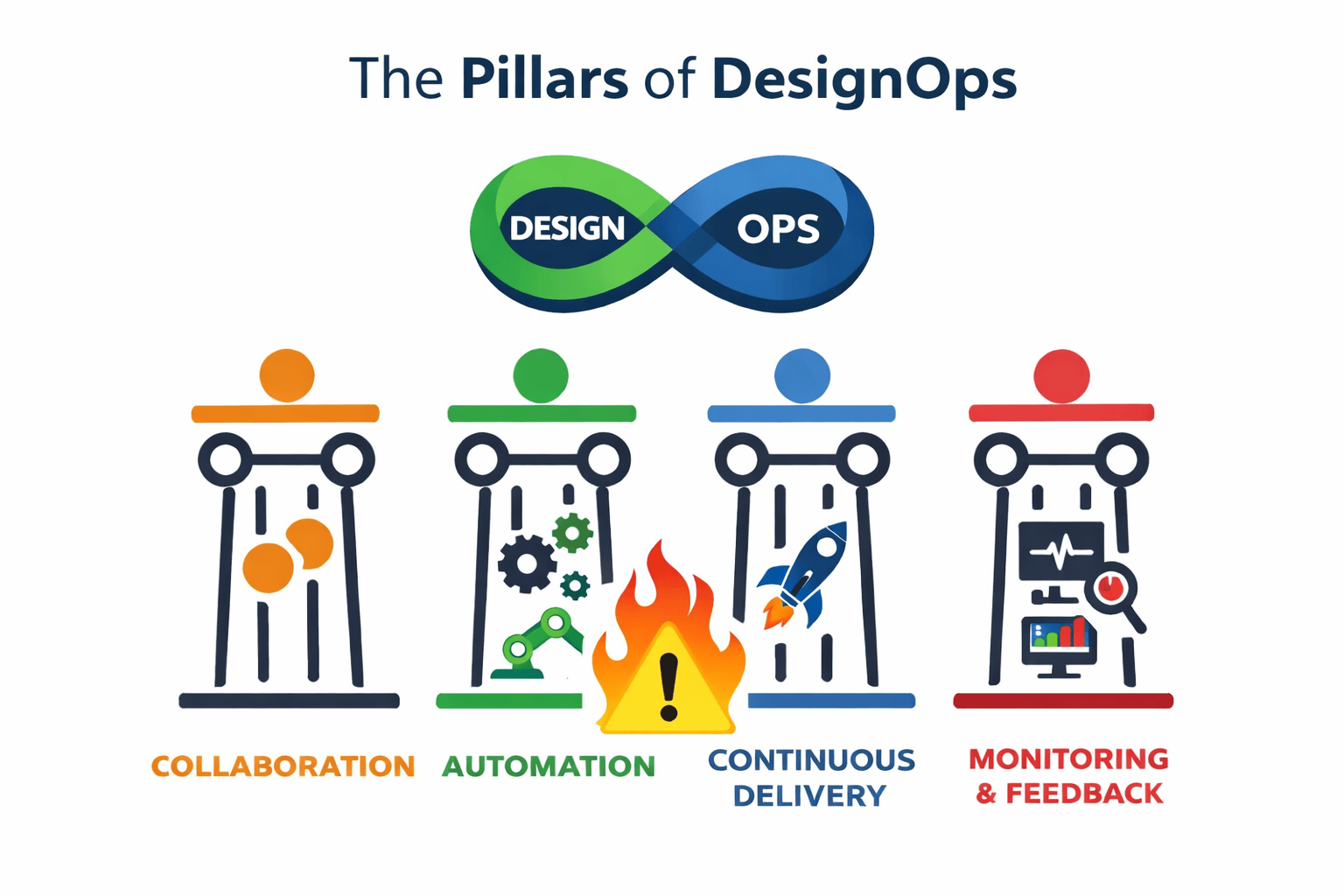
What is Design Ops? The Complete Guide
Build a Design Ops system that frees designers, developers, and marketers from busywork, aligns workflows, and speeds launches.
Design Ops • 5 min read
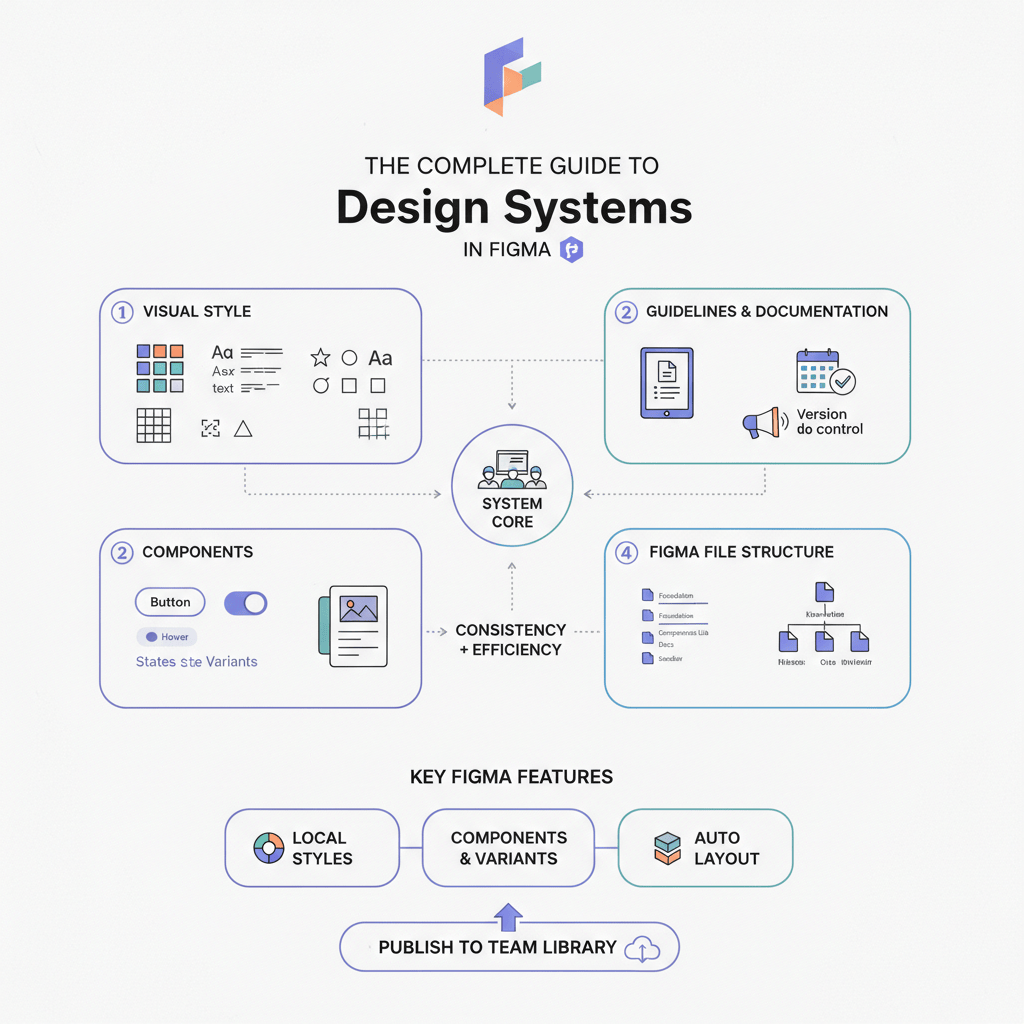
The Complete Guide to Design Systems in Figma (2026 Edition)
Upgrade Figma design systems for 2026 with variable-first architecture, AI cleanup, and Code Connect to scale without drift.
Design Systems • 6 min read